Step 1: Plan Your Game
Goal: Plan before you build.
Write your ideas below. These notes are saved only for this browser session.
Planning Tips
- Choose one player.
- Choose one enemy.
- Choose one collectible.
- Ask AI for simple cartoon sprites with transparent backgrounds.
Step 2: Bring Your Hero to Life
🎯 Mission: Turn your AI artwork into a playable character.
- Upload the background image you created with AI.
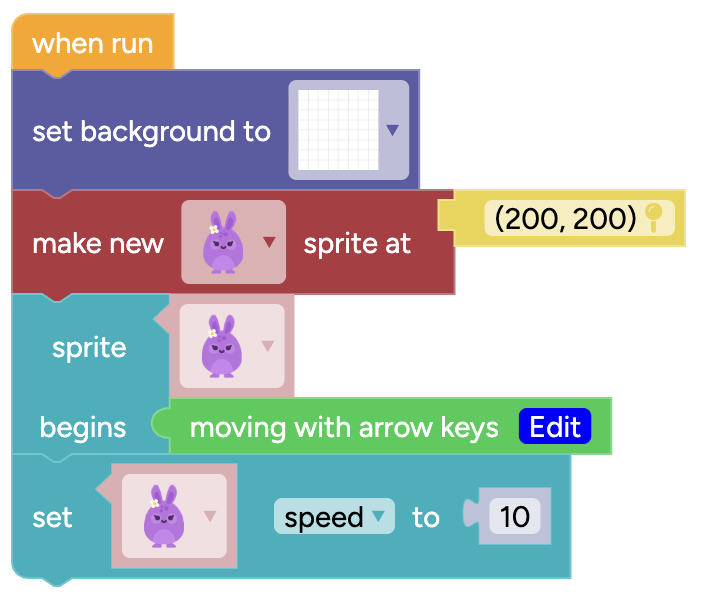
- Drag a Set Background block into your program and choose your new background.
- Create a new sprite for your player and make sure you select the correct AI image.
- Place the player near the centre of the screen so there is room to move.
- Add the Moving with Arrow Keys behaviour so the player can be controlled.
- Set the player's speed to 10. Test it and adjust only if it feels too slow or too fast.
✅ Your character should move smoothly with the arrow keys.
Step 3: Create the Enemy and Collectible
🎯 Mission: Give your player something to collect and something to avoid.
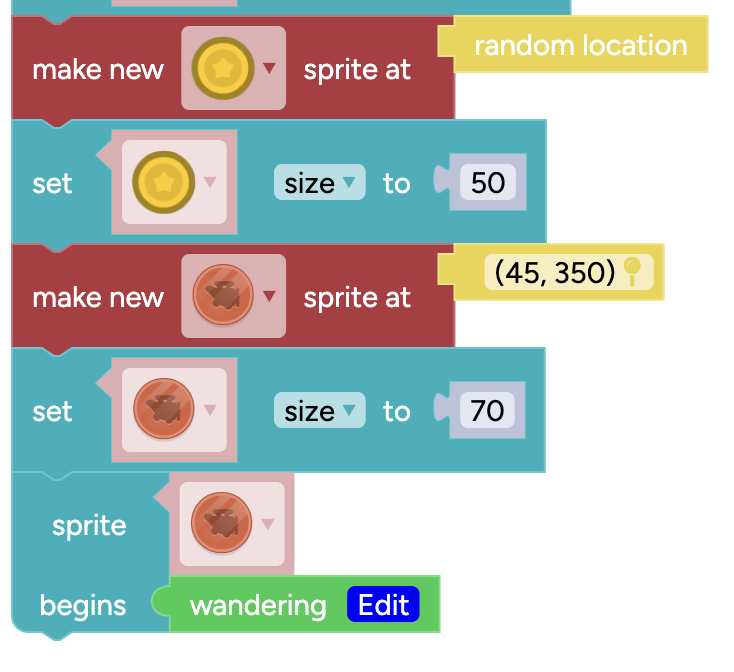
- Create the collectible sprite and choose the AI image you designed.
- Create the enemy sprite and select the correct enemy artwork.
- Place the enemy far away from the player so the game doesn't end immediately.
- Add the Wandering behaviour so the enemy moves automatically.
- Resize both sprites until they look natural in your game world.
✅ Run your game. The enemy should wander while your player can safely move around.
Step 4: Create Essential Variables
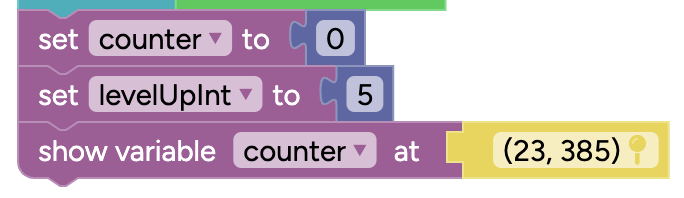
- Create counter for score.
- Create levelUpInt and set it to 5.
- Show the score variable.
Step 5: Create the Game Over Event
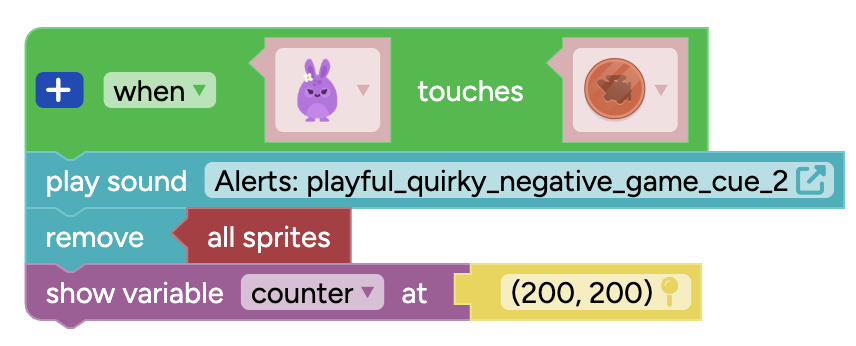
- When player touches enemy.
- Play a sound.
- Remove all sprites.
- Show the score.
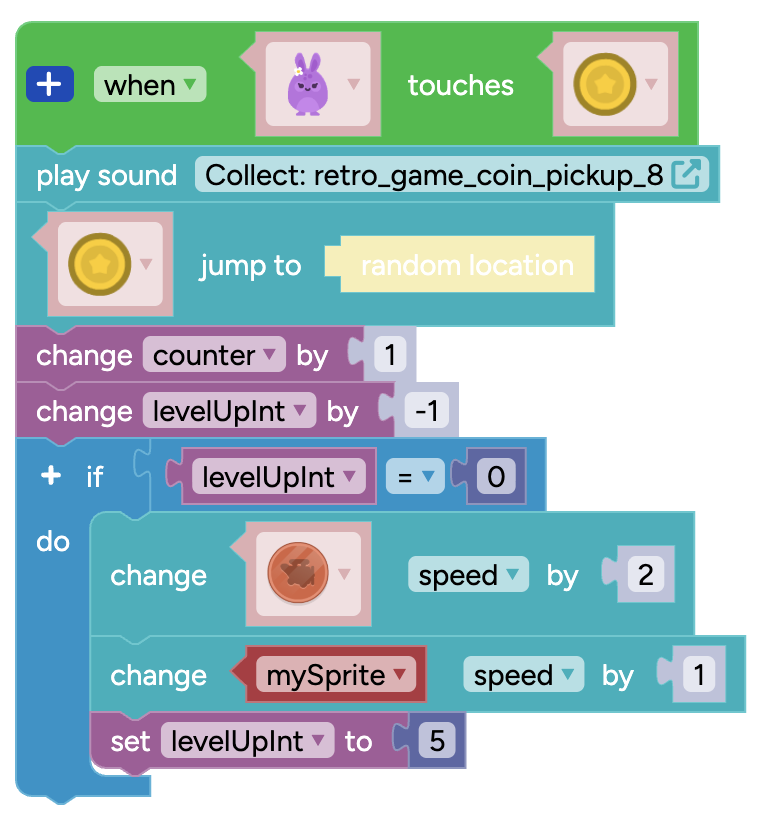
Step 6: Collecting Items and Leveling Up
- Play a sound.
- Move collectible to a random location.
- Increase score.
- Decrease levelUpInt.
- When it reaches 0, increase enemy speed and reset it to 5.
Step 7: Generate Your AI Sprites
🎯 Mission: Create your own custom artwork using the AI Sprite Generator.
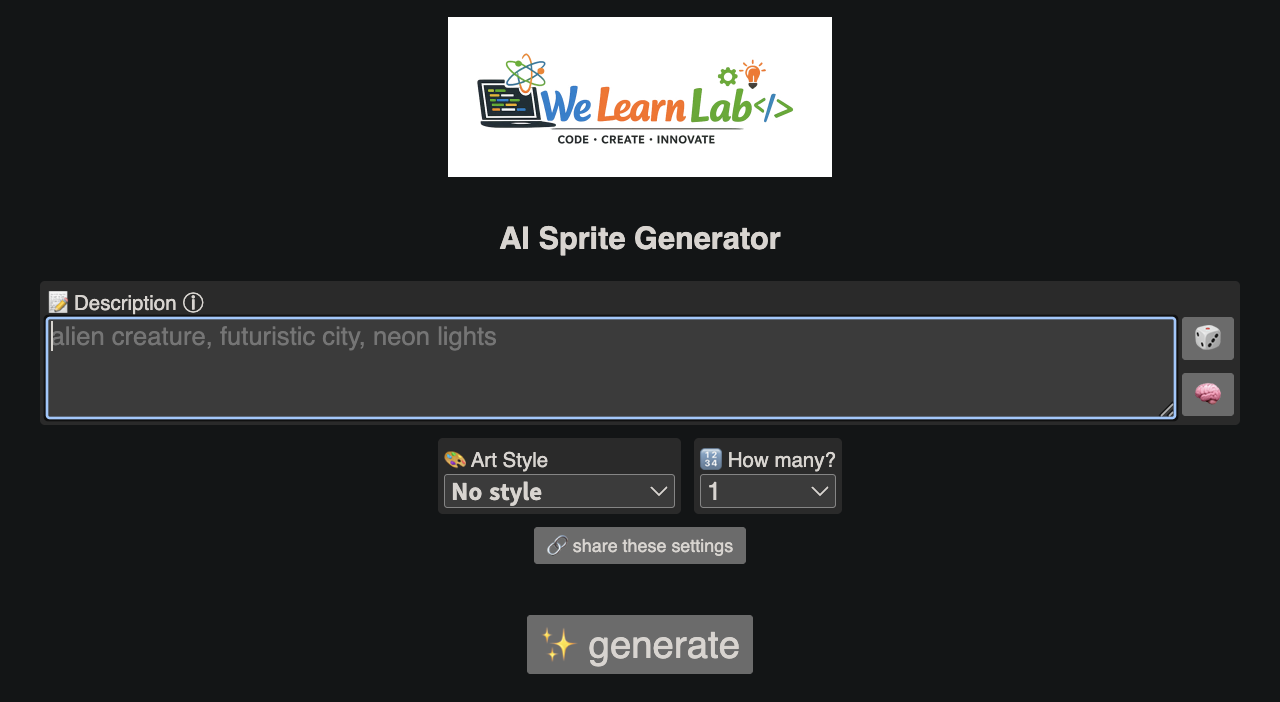
- Open the WeLearnLab AI Sprite Generator.
- Think about the sprite you want to create (player, enemy, collectible or background).
- Write a clear description. For example: "Cute blue robot with big eyes, cartoon style, transparent background".
- Click Generate and wait for your image.
- If you don't like the result, improve your description and generate again.
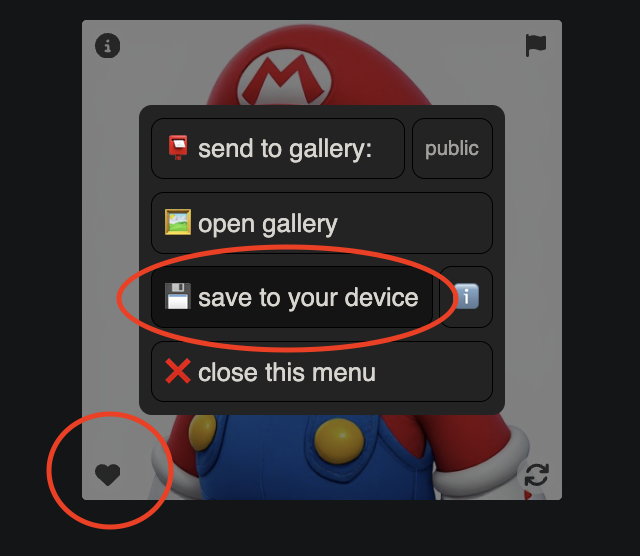
- When you find your favourite image, click the ❤️ button, then choose Save to your device.
✅ Repeat these steps until you have created all of the artwork your game needs.
Step 8: Prepare Your Images
🎯 Mission: Get your AI images ready for Sprite Lab.
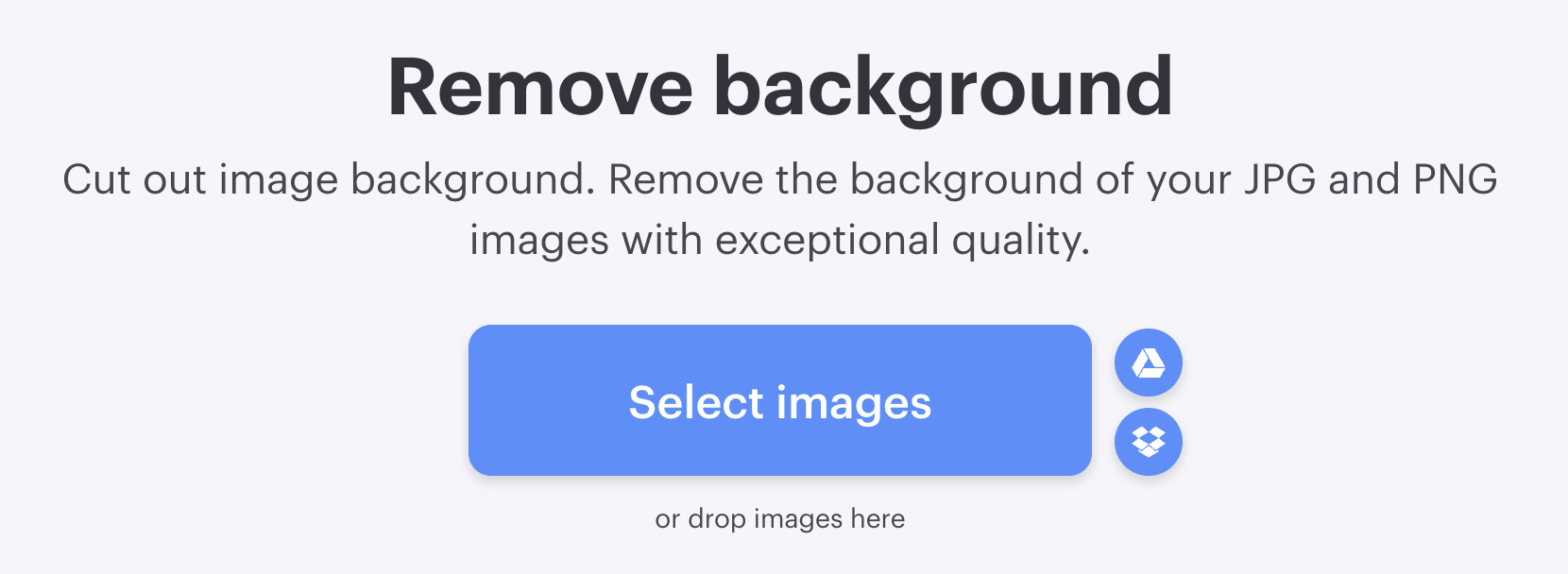
- Open a background removal website and upload your image.
- Download the transparent PNG version.
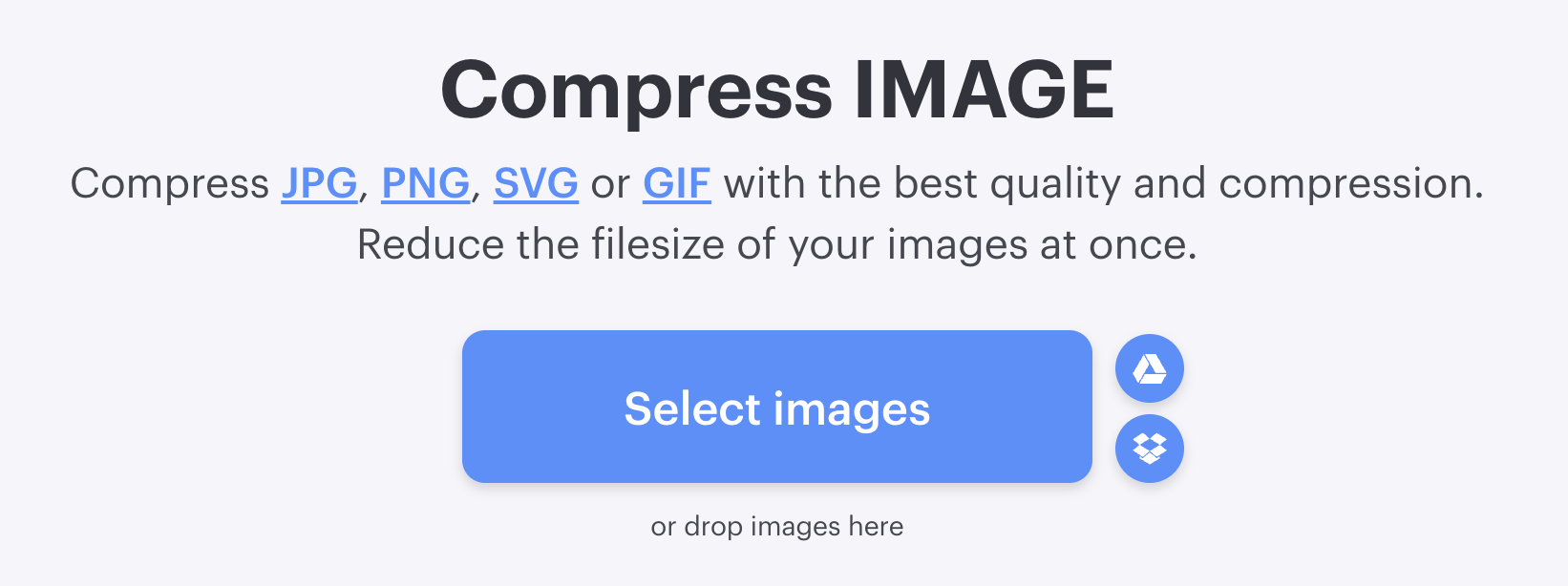
- Open an image compression website.
- Compress the PNG to make it smaller without losing much quality.
- Repeat for every sprite you created.
Transparent backgrounds make your sprites look much better in games.
Step 9: Upload Your AI Sprites
🎯 Mission: Import your artwork into Sprite Lab.
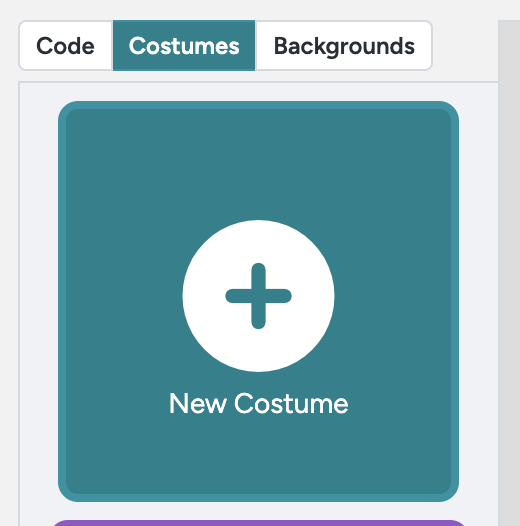
- Open the Costumes tab.
- Click New Costume.
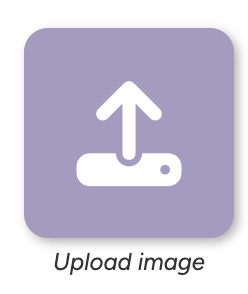
- Select Upload Image.
- Choose one of your prepared PNG files.
- Repeat until every sprite has been uploaded.
✅ Your custom sprites should now appear in the costume library.
Step 10: Replace the Template Sprites
🎯 Mission: Swap the placeholder artwork with your own AI creations.
- Find each make new sprite block in your code.
- Click the sprite picture in the block.
- Select the matching AI costume you uploaded.
- Replace the player, enemy and collectible one by one.
- Run the game and make sure every sprite looks correct.
🎉 Congratulations! Your game is now completely personalised with artwork you created yourself.

🏆 Congratulations!
Amazing work! You have completed this AI Sprite Adventure tutorial.
You successfully planned a game, created AI artwork, built a player, added enemies and collectibles, used variables, and created game events.
Take a moment to celebrate your achievement!
🏆
🚀 Next Challenges
Ready for more? Great programmers always keep improving their games!
Try one or more of these challenges:
- 🌟 Design your own Opening and closing screen using AI!
- 👾 Create a new enemy using AI!
There isn't just one correct answer. Experiment, test your ideas, and have fun!
🚀